Showing posts with label OS Review. Show all posts

Thursday, February 4, 2021

My Experience With Ubuntu On My Surface Pro 2


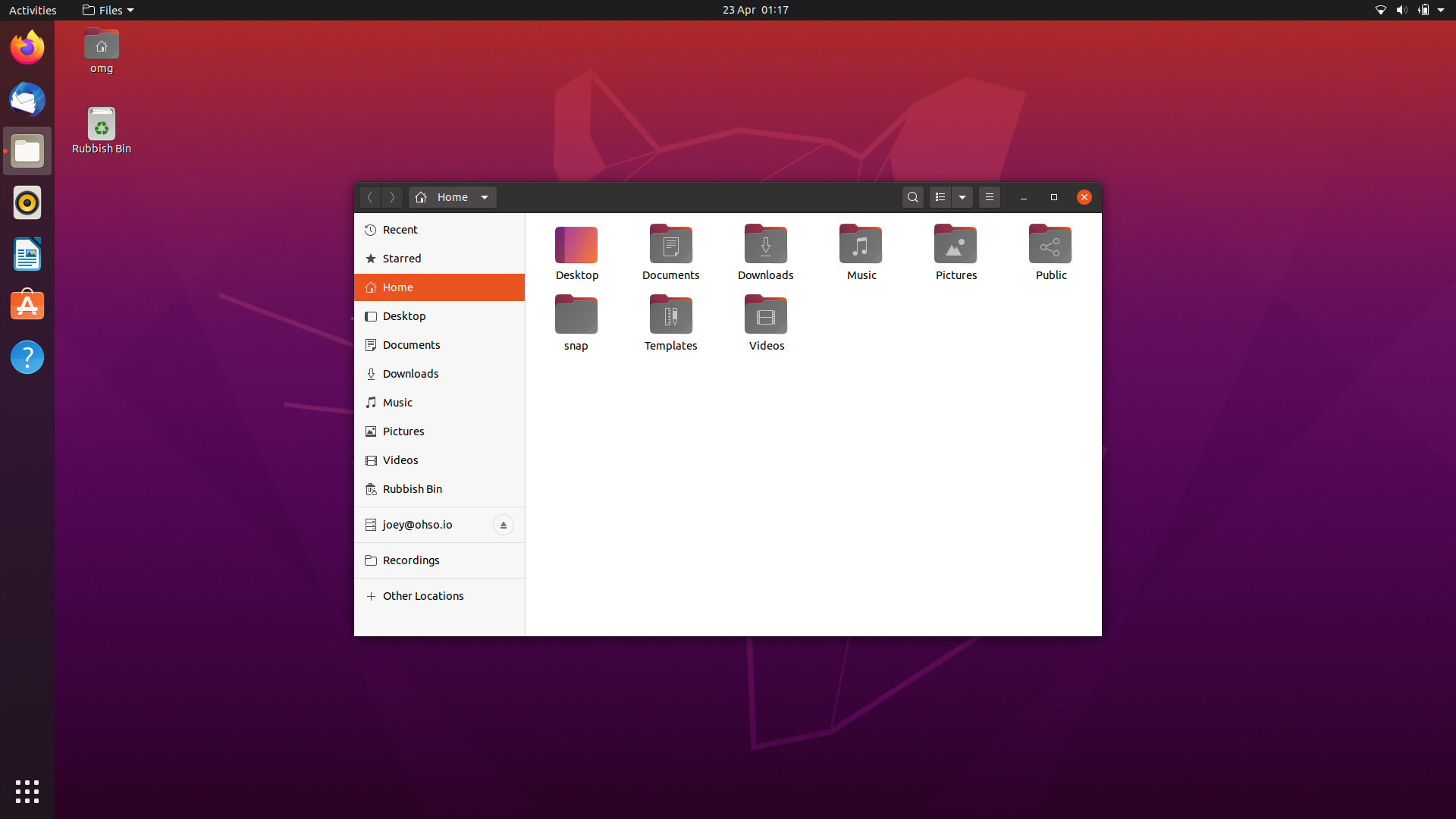
Ubuntu 20.04 (Screenshot by OMG! Ubuntu!)

A while ago, I decided to try out Ubuntu on my Surface Pro 2. I thought that since my sister's laptop ran Kubuntu so well, I figured that I should give Ubuntu a try on my Surface Pro 2. I also run Debian on my main machine, so I figured that Ubuntu wouldn't be too bad to try.

Installation

Installation wasn't hard. I booted into the USB drive after repeatedly trying to boot from it. I went through the installation process of Ubuntu 20.04. It was all fine and everything worked. I decided to erase Windows 8.1, since my Surface Pro 2 only has 128GB of internal storage, (which I would later regret). 

My Experience

When I booted it up initially, it wouldn't boot. I had to disable Secure boot, which made a bright red background before booting into Ubuntu. I thought this was weird, since I had heard that Ubuntu would just work with Secure Boot. After booting and inserting my password, I was greeted with the desktop. Ubuntu made the screen resolution really small, so I couldn't touch stuff as easily. I fixed this by using fractional scaling, a new feature with Ubuntu 20.04. 

After updating the system, I found many issues with Ubuntu. Touch wouldn't work and the TypeCover wouldn't work in certain apps. A reboot fixed this issue though. After having these issues, I decided to try the surface-linux kernel, as I heard it made the experience much better.

After installing the kernel, I decided to try and take my Surface Pro 2 to school. I faced a number of headaches with Ubuntu at school. It wouldn't suspend properly, so the tablet would heat up in my bag. Sometimes, it wouldn't even wake up. I had frequent crashes that would force me to restart the operating system. Touch wouldn't work with certain apps, and it was overall a horrible experience. 

I would not recommend installing Ubuntu on a Surface Pro 2. I admire the work of the linux-surface team, but I feel like the Surface Pro 2 is just not meant for Linux. If you want to have a Linux laptop, consider a ThinkPad device, as I have heard they are much better for Linux. Overall, I did not like my experience using Ubuntu on my Surface Pro 2, and I reinstalled Windows 8.1 shortly after using it. If you have any solutions to the issues I faced, feel free to comment below. Thank you for reading my article.  

Why I Downgraded From Windows 10 to 8.1


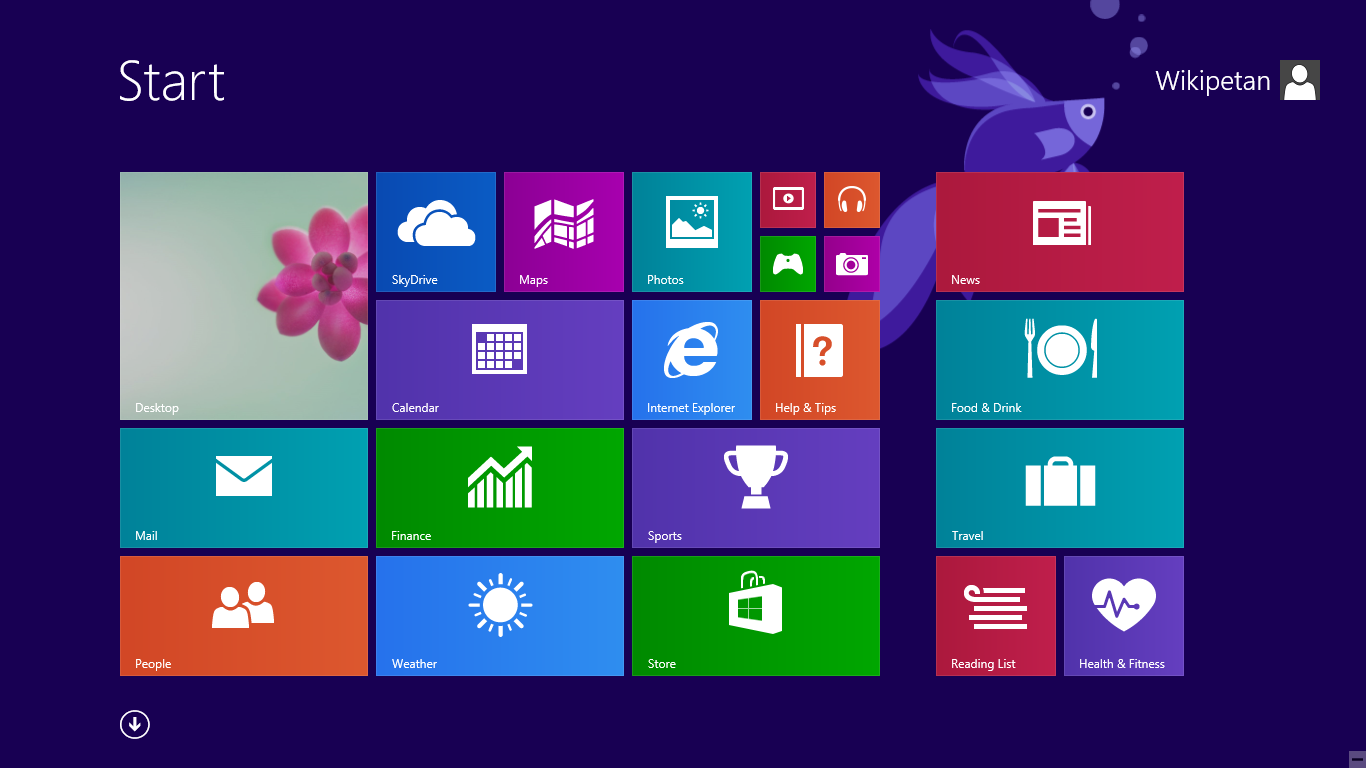
Windows 8.1 Start Menu (Photo by Confidential Files!)

A while ago, I decided to try out Windows 8.1 on my Surface Pro 2. I thought that it might be faster, or I might get better battery life out of it. I downgraded from Windows 10 using a recovery image, and booted into Windows 8.1. I had no idea how much I would love Windows 8.1.

Once I finished the setup and installed all of the updates, I figured I would get my regular applications. I got Firefox set up and everything. I also managed to get the Windows Store working just fine. After a while, I got bored of Windows 8.1 and decided to try a different operating system (coming in another post later). After trying that operating system out, I decided to go back to Windows 8.1. 

What I Love About Windows 8.1

Windows 8.1 has many features that I love about it. First of all, it is really fast. I never knew how fast my system could be, as I used Windows 10 on it which slowed the device down. Windows 8.1 made my machine much faster than Windows 10. Second, I got better battery life out of Windows 8.1. I was able to get through a whole school day without it getting below 60%. With Windows 10, most of the time I would be around 40% at the end of the school day. This was probably due to the fact that Windows 8.1 typically has around 50-60 processes running in the background compared to Windows 10's 150.

There are many other things I love about 8.1. Windows 7 applications weren't fully removed or replaced like they are with Windows 10, so I could use the control panel to update Windows again. Windows 8.1 also has the UWP (Universal Windows Program) Platform, so I could play many games such as Flow and Crossy Road. 

Another great thing about Windows 8.1 is the way that multitasking works. You can split UWPs to the side of your display while also having the desktop open. This opens up much more workflows, like having a PDF on one side in full screen while having LibreOffice Writer on the other. The gestures also feel really nice, as you swipe from the left to split or close an app, and you swipe from the right to open the control center, where you can adjust brightness and network connectivity.

I also set up Windows 8.1 with Brave, a Chromium based web browser, and its SSBs (Single Site Browsers). SSBs are like iOS apps, since you only have one website you can visit in a window. I found that Brave's SSBs are better than Firefox's SSBs, since Brave's SSBs have extension support while Firefox's SSBs do not. These Single Site Browsers help make my Surface Pro 2 feel more like a tablet while also providing me with an easier way of managing apps.

What I Miss From Windows 10  

Windows 10 was an alright operating system. Certain Windows 8.1 UWPs do not work anymore or do not exist for 8.1. Windows 10 also included a more touchscreen friendly Mail and Calendar app, which support Google OAuth2 login. I also couldn't get the Music app to work after reinstalling Windows 8.1, while on Windows 10 the Groove Music player would work out of the box. 

Will I Switch Back to Windows 10?

I have decided that Windows 8.1 is just too great to give up. Eventually, when Windows 8.1 support ends, I might switch to Windows 10, or I might just stay on 8.1 until the end of the device. Windows 8.1 is faster, more touch friendly, and overall just a better operating system than Windows 10 in my opinion. Feel free to post in the comments if you think Windows 8.1 is better or Windows 10 is better. Thank you for reading my article.

Wednesday, December 16, 2020

Debian Versus OS X Mountain Lion | Why I Switched Back To OS X


I have recently started to use my Macbook 4,1 again, even after getting my Surface Pro 2. There are a variety of reasons why, but that is for another time. I decided to try Debian and Mountain Lion, and I have found out which OS is for me.

Debian

Debian is a great operating system. It is free and open source, and it is very stable and secure. Getting it to work on my Macbook was a bit tricky, but I managed to do it a while ago. It was great for the time I was using my Macbook as my main laptop, except for a few problems. The trackpad was very broken using Debian, as it would spazz out and would often click things I didn't want to click. It also deleted my text while typing very frequently, which would leave me frustrated as I had to retype whatever I was typing. Overall, Debian was good for getting newer software to run on my Macbook, but it wasn't the best experience.

Mountain Lion

OS X Mountain Lion has been unsupported by Apple for a long time now. It was released in 2012 and stopped receiving updates in 2015. I managed to get it to run using NexPostFacto, a patcher that allows older Macs to run Mountain Lion with graphics acceleration. I use my Macbook mostly for online tasks nowadays. However I did do a bit of GIMP work on it too. Although iMessage and FaceTime don't work, I really like Mountain Lion, since it doesn't have the same issues I have on Debian. The keyboard doesn't randomly try and delete text and the trackpad works really nicely. I also prefer the older look of Mountain Lion than the newer flat design of newer operating systems. Overall, Mountain Lion has been great and reliable for me on my Macbook.

Conclusion

If you are looking to run modern applications on your older Macbook, Debian is the right operating system for you. If you are looking for stability and reliability with older versions of applications, Mountain Lion is good for you. I have really taken an enjoyment to Mountain Lion compared to Debian on my Macbook. I hope to be able to get more life out of it, even though I have moved on from the device.

Debian Troubles and Why I Switched Back


 I have been using Debian again for the past two weeks. I think that the experience is great, even though I have had a few issues (mostly KDE related). 

The Fedora Story

I switched back to Debian for one major issue. My old NVIDIA graphics card was acting up on Fedora and causing it to slow down immensely and freeze the system, forcing me to reboot. I also switched back because I know how Debian functions compared to not knowing much in Fedora. Fedora is great on newer hardware, but my older hardware was not very well suited for it. 

Trying Arch Again

Before I switched back to Debian, I tried Arch Linux again. It was okay. I got my setup the way I like it with dwm, a tiling window manager, and some more suckless utilites, but there was one major issue that prevented me from staying on Arch. That issue was suspending; no matter what I did, the system would not suspend. It would keep the light on and the fans wouldn't shut down either. It wouldn't wake up from this state at all. I looked around and found out it was an issue with my CPU, but I could not find a fix for it online. 

Going Back to Debian with Some Mishaps

I decided to give up on Arch Linux and go back to Debian. I went through the install process and got my system set up pretty nicely. However, when I went to update, I saw i386 instead of amd64. "Oh no!" I realized at the time. I managed to install a 32 bit version of Debian instead of a 64 bit version. The entire reason why this happened was because I thought that a 32 bit version would work well on my Macbook 4,1. I went and downloaded the 64 bit version and reinstalled with the KDE Desktop.

The KDE Experience

After reinstalling Debian and choosing the KDE desktop, I decided to debloat the system quite a bit. I removed some of the unnecessary packages (at least for me) such as the screen reader and other stuff. Overall, Debian with KDE is really good, and I would consider it one of the more modern desktops for Debian. It was great for me for about seven days or so, until disaster struck. Every time I would lock the system, there would be no prompt for my password. I would have to go into a tty and unlock the session using loginctl. I decided to switch to a more reliable desktop environment and go to XFCE.

The XFCE Experience

Immediately after installing XFCE, I noticed one thing. It was very ugly. I decided to try and rice it a bit using the arc theme and papirus icon theme. It looks alright now, but I really liked my KDE setup better. Overall, XFCE has been super reliable for me so far, and it is faster than KDE. There are a few things I miss that I had in KDE, such as KWin Scripts (to emulate a dwm-like experience), easy theming, and fancy graphics. I think that in the future I will go back to using dwm instead of any desktop environment, but for now I am fine using XFCE.

Conclusion

Debian has been great so far for me. Other than a few issues that have to deal with the KDE desktop environment, it has been a good experience. Debian is fast, reliable, and I love how packages are not up to date even on my desktop. I don't use my desktop for things that would require the latest and greatest, and I think that stability is more important than new features. That is why I am sticking to Debian for the time being. 


Tuesday, November 17, 2020

My Personal Top 5 Linux Distributions of 2020

 Hey guys, I am going to review my personal top five Linux distributions for this year. These distros, (distributions), are ones that I have personally used in the year of 2020. You may not agree with what I say, but that is alright. We are all human beings and we have our own opinions. These distros are just the ones that I selected because I thought they were the best.

5. Ubuntu


Ubuntu is a great distro for beginners and more advanced Linux users looking for a stable option. I put this at number five because I have not had the best experience with Ubuntu. I had issues with the proprietary drivers, and I hated the experience. It is still a great distro, as I ran it on my Macbook for a long time using the Unity desktop. If you have to use Ubuntu, you should definitely install the Unity Desktop Environment. It makes the experience much better, even if it is outdated. You can download it by typing sudo apt install ubuntu-unity-desktop. Ubuntu is a great distro for beginners coming from Windows and more advanced Linux users looking for a more stable experience.

4. Arch Linux


Arch Linux is a great distro of Linux for those who want a bleeding edge experience. I used it for a month or so, and it was great. I could install very little packages and still have an amazing Linux experience bloat free. However, I did have some issues with Arch. For example, I could not get the NVIDIA drivers working for me whatsoever apart from the Open Source drivers. I have a very old NVIDIA card, a GT 8800, and the latest drivers do not support it anymore. Trying to get proprietary drivers working was a nightmare, and it ultimately caused my install to break. That is one of the things with Arch Linux; things can and will break, and you have to fix them. If you are a more advanced Linux user or are curious as to how Linux works its magic, try Arch Linux.

3. Manjaro Linux


Manjaro is a great distro for gaming and stability. It is based on Arch Linux, but it is more stable than Arch, as it has its own repositories and package system. They hold packages from Arch Linux for about two weeks in their testing branch, then they put the package into their stable repositories. This makes Manjaro a pretty stable distro. I really liked the XFCE version of Manjaro, as it was fast and fluid. I did not have any problems with it, although a Discord user linked me to a GitHub repository that told me how Manjaro is not great, so I switched to Arch Linux. Overall, Manjaro is great if you want to game on Linux and have a stable system.

2. Debian GNU/Linux

Debian is a great distro for those who want just plain and simple stability. Debian runs on many servers, but it is a great option on the desktop as well. I used to use it with GNOME, XFCE, awesomewm, and even dwm. Debian could handle it all, and it never broke apart from the time that I broke the bootloader. The only downside is that the software in the repositories tends to be old; however, you can use the testing or even the unstable branch of Debian for the latest software. If you want new software without compromising Debian's amazing stability and security, you can use flatpaks or AppImages. Both are great methods of software delivery without compromising Debian in any way. If you are looking for a stable experience that you can rely on, you should use Debian.

1. Fedora Linux

Fedora is great for developers and those looking to get into GNOME. I am a developer, as I made my own Discord bot and host it too. I also love the GNOME workflow more than any other workflow, and that includes window managers too. Fedora ships with a stock GNOME experience, and it is one of the best distros for it. I love the dnf package manager because it is more legible than apt or pacman to me. It comes with no proprietary software out of the box, and it is one of the best distros I have tried when it comes to NVIDIA. Fedora is also really stable, and it stores two additional kernels in case something breaks. The only disadvantages is that you need to enable the RPMFusion repositories in order to get things like multimedia codecs and proprietary graphics drivers. Other than that, Fedora is just a great distro, and I have been using it for a while now. That is why I placed it at number one on my top five list of distributions. 

Thank you for reading. There are links below to each respective distribution.

  1. Fedora Linux 
  2. Debian GNU/Linux 
  3. Manjaro Linux
  4. Arch Linux
  5. Ubuntu

Wednesday, October 28, 2020

Using Fedora Linux

Awhile ago, I decided to try out Fedora. I really like GNOME's workflow and Fedora seemed like the best option because it is based around GNOME. 

Initial Installation

I installed it, which was pretty easy thanks to the Anaconda installer, and tried to get the proprietary NVIDIA drivers working, but my card, a NVIDIA GT 8800, is older so the drivers ended up making the experience not great. The background would be all corrupted after suspending. I tried my hardest to fix it using systemd and scripting, but I couldn't fix that issue. I ended up deleting the partition and switching back to Debian.

Second Try

Today, I decided to give Fedora another chance. I didn't use the NVIDIA proprietary drivers and instead opted for the open source drivers. So far, the experience is great. I got all my keybinds set up, and I customized it so it uses the Adwaita-Dark theme. It looks great and I love it. I had to initially upgrade from Fedora 32 to Fedora 33, but it wasn't hard. It just took a bit of time due to it having to upgrade all the packages. Installation of my programs wasn't hard either because I don't use heavy IDEs like Visual Studio Code, and I generally only need my web browser to function on my computer.

 The GNOME Experience

GNOME 3.38 is really great and fixed some of the annoyances I had with GNOME. It moved the buttons to power off, suspend, and restart all into one menu instead of a prompt that would take up the whole screen. So far, the experience has been speedy, and I really love the workflow. I like the overview menu, as it makes it easy to see all the applications I have open. I also love the dynamic workspaces of GNOME. So far, I have been using GNOME without any extensions, and it has been great.

Conclusion

So far, Fedora has been an excellent distro for GNOME 3. I like the workflow, and I like the dnf package manager. If you want a stock GNOME experience, Fedora is the distribution for you. It only comes with one plugin enabled out of the box, and it is super speedy. Programs are up to date, unlike Debian, and it is just so good. This has been my experience using Fedora so far. I might write a followup to this article after I use the distro more.

Monday, October 12, 2020

Running Debian on my Macbook

 Yes, I know that I have written quite a bit of OS reviews, but this one is really good. Two days ago, I decided it would be nice to give Debian a try on my 4,1, as it has an older kernel and the lid closing might work. At the time of this post, the latest Debian release is Debian 10 Buster.

Installing Debian

I downloaded the operating system on their website using the HTTP option (I found it to be the easiest). I used dd in order to flash it onto the USB flash drive I had on hand. I booted to it, and chose the Graphical Installer. When it booted into the installer, the trackpad did not work. I navigated all the way to selecting the Desktop Environment before I had to get a actual mouse. Luckily, there was one where I was staying (I was not at my house), and when I plugged it in, it worked and I selected Continue. 

After the install, I booted into XFCE, which is the Desktop Environment I chose. There were some pretty major issues straight off the bat. The trackpad had no way of right clicking,the panel was not great, the WiFi card did not work, and the fans weren't turning on when they should. I managed to fix them and I am going to list the steps below.

Fixing Networking

The most important thing I needed to get working was networking. Luckily, it was pretty easy. I had the Broadcom BCM4321. You might have a different card, so be sure to check the instructions on the Debian wiki page for your card. You need to have a Ethernet connection, so be sure to connect to the internet, otherwise you won't be able to install the necessary firmware. I installed the firmware-b43-installer package from the Debian repositories. Since I installed from a USB, the repositories were screwed up. In order to fix this, I nanoed into the /etc/apt/sources.list file and changed my repositories to match the Debian Wiki's sources.list example file. This fixed the repositories after I updated it using apt update. Once I installed the firmware package, it seemed to go alright from there.

Fixing the Trackpad

In order to fix the trackpad, I needed to add a configuration file and install a package. I used the instructions from a blog called the Rambling Moose, where they explained how to fix the issue. I installed the xserver-xorg-input-synaptics package after updating my xorg config files. After a reboot, it seemed to work just fine.

Fixing the Panel

After I did that, I wanted to get the panel out of the way. I originally tried adding it to the autostart, but that ended up doing nothing. I finally figured out what the issue was. Make sure that when you log out, the checkbox saying "Save Session after Logout" or something similar is not checked. After doing this, the panel seemed to autostart just fine.

Fixing the Fans

Originally I tried a utility made by datcuandrei called MacLinuxUtils. It is a nice Java program that I would highly recommend. I had a small issue initially with the program, as the xfce-terminal would kill the Java process after exiting, but the author fixed the issue and updated the release. In the end, I decided not to use the program for the time being. The author of the program told me that they would be adding features such as a system tray icon and a more customizable manual mode for the fans. Once these features are added, I will gladly switch to the application again. In the meantime, I decided to try macfanctld. The program runs as a systemd daemon and has a config file located in /etc. It made the laptop much cooler and is my second recommendation if you don't want to use MacLinuxUtils. 

Overall Thoughts

Debian 10 has been great. I have been able to use suspend like normal, and I have been able to use my favorite web browser Brave with it. It feels more up to date than my old OS X Mountain Lion install. I am dualbooting both however, so if I need OS X I have it available. After fixing all of the issues mentioned above, it runs great. It even runs quite a bit cooler than OS X. It stays around 90-130°F. The RAM usage is also much better. It idles around 300-500MB. Debian 10 is a great option for those who have old macs and don't want to use an OS like Chrome OS on it. It is much better than Ubuntu in my opinion, which has its fair share of issues on this old machine. If you need a user friendly installer, I would recommend checking out the Debian Live ISOs, as it uses the Calemares installer. 


Debian 10 running on my Macbook 4,1
Thursday, October 8, 2020

Trying CloudReady on my Macbook

 Today, I thought it would be a good idea to revisit CloudReady on my Macbook 4,1. I created the USB using a tool in Linux called dd. It took some time, but it worked. I took out an old hard drive, that I originally got from the Macbook itself, and put it in the computer. CloudReady discontinued dual booting in 2018, so I couldn't dual boot it with OS X Mountain Lion. 

I booted into the hard drive, so I could see what was on it before I wiped it. It turns out that there was macOS Catalina 10.15.3 on there. I checked out what was on there, and it was just a bunch of hackintosh kexts and such, some dmgs of programs I installed, and some of my music library. I figured that the Catalina partition wasn't very important, so I decided to go through with my install of CloudReady.

I booted into the USB, which took a while, but I wasn't there to see how long it took as I had other matters to attend to. It booted fine and I connected to my WiFi before installing. I installed the OS, which took a bit of time, and booted into the hard drive. It first showed a flashing folder with a question mark in the middle, but it went to the CloudReady logo a bit after that. 

It booted into the setup screen, and I set up my Google account and connected to WiFi. One of the things I noticed in the setup was that the touchpad sensitivity was very high. When I finished the setup, I went into the settings and changed it to the slowest option so it was actually usable. After that, I went into the Chrome browser and accepted some permissions for extensions, since I use Brave and not Chrome anymore, I had to accept them.

The next problem I noticed was that the WiFi kept going out after ten or so minutes of use. I knew about the problem because I used Linux on the machine before (maybe another post soon about that experience) but I couldn't do anything about it since CloudReady did not have an option to switch to a proprietary driver.

The final straw and what drove me to put my Mountain Lion hard drive back into the laptop was the Macbook kept on getting super hot. CloudReady would not ramp up the fans like it should, so it kept on getting extremely hot. I didn't like this, as when I am in a classroom, I don't want my fans spinning up super loudly because the OS can't handle cooling very well.

Although I had a fairly negative experience, I noticed some of the stuff was fixed that was an issue in a Previous release of CloudReady. The headphone jack no longer lit up red, which was really good because I don't want a distracting red light in my headphone jack when I take the Macbook places. Suspend was working properly, which is good. I figured out that you can use a PIN in Chrome OS, which is super convenient because I have a long password. 

Overall, I would not recommend CloudReady for anyone using a Macbook 4,1 or older in 2020. The experience is not very good, and CloudReady's certification for the machine ended a couple of months ago. If you want a more modern operating system, I would recommend Mountain Lion, as that is what runs best on these old machines. You can use Firefox Legacy and some other software, which I discuss in my other article about Mountain Lion in 2020. That is all for now, thank you for reading.

Wednesday, October 7, 2020

Running Mountain Lion in 2020

 This is a review on the state of OS X Mountain Lion in 2020 from my personal experience. 

OS X Mountain Lion was released on July 25, 2012. The OS received security updates until 2015. Most app developers decided to leave the platform. The major blow to older OS's was Google unsupporting Chrome and not updating it anymore for OS X 10.9 and older. However, there are alternatives to Google Chrome, which I will discuss later.

I run Mountain Lion on a Macbook 4,1. The Macbook 4,1, (also known as the Macbook Early 2008), does not officially support Mountain Lion. Apple supported the device up until 10.7 Lion. I managed to get Mountain Lion running using a patcher tool called NexPostFacto. The patcher was developed by a person named parrotgeek1. You can visit his website here. 

Mountain Lion, by itself, is not a great operating system to be running in 2020. Safari is outdated and does not work with the majority of websites. The mail application is not really great in my opinion, although I am a avid Thunderbird user. Although, there are ways you can run a modern web browser on Mountain Lion. Parrotgeek1 has also developed a browser called Firefox Legacy. This takes a more up to date version of Mozilla Firefox and ports it over to older operating systems like 10.7 and 10.8. You can even run a bit of an older version of Firefox on Snow Leopard! You can also find this web browser on his website, which I have linked above. 

Firefox Legacy makes Mountain Lion more usable in 2020. Websites actually are decent on the machine, and you can get more modern extensions such as Multi Account Container, which I use for school, LastPass, and more. I was even able to get Google Meet to run! 

Older applications tend to run pretty well. I was able to get a more modern version of git using MacPorts. I also used a code editor called TextMate to help fix small issues with my discord bot. Although, I really don't need it because I have vim. I also got an older version of iTerm to run on it and replaced the bash shell with a zsh one. GIMP 2.8 also works pretty well on the device, although you do not want to be editing 4K images on it. Thunderbird also runs pretty well, but you need an older version. Specifically, you need version 45 of Thunderbird, which is outdated and doesn't run the more modern Thunderbird extensions.

Overall, my experience with Mountain Lion has been positive. Sure, I could run Linux on my Macbook 4,1, and I have before. The only problem I have with Linux is that the kernel stops detecting the lid close after a while of use. Mountain Lion did not have the same issue. I also did not want to run Windows 7 or 10 on the devices, since both are not great for a Core 2 Duo machine and the drivers aren't great either. I like Mountain Lion because you can still get by using it in 2020, even though some applications might not run or might be outdated. Most apps I actually use are web based, so I don't even need to download anything. That has been my personal experience with OS X Mountain Lion on my Macbook 4,1. 


 Mountain Lion running on my Macbook 4,1.

Transitioning to a new Blog

 Hi there! If you are reading this, I am informing you that I have moved my blog to a new website! You can check it out at wolf1e.web.app ! ...